A practical office guide
How to Make Scanned PDFs Searchable in Narra
You remember a supplier name or a clause, but the file is called Scan_0042.pdf. OCR extracts text from a scan so that the words inside can help you find the record. Start with a clear scan and verify what was extracted.
For office staff working with paper records, scanned agreements, and invoices.
A document you can find by a known phrase and verify against its original scan.
Start with one process
Set it up. Check it together.
- 01
Check the scan before uploading
Open the PDF and check that the needed pages are present, correctly oriented, and readable. Look for cropped lines, faint print, and blurred text. Improve or rescan poor pages where possible; OCR cannot reliably recover words that are missing or illegible.
- 02
Choose an intake path that runs OCR
Select Upload to open Upload with OCR for standard processing of supported documents. If you file directly with Upload to Space, the effective Smart Extract setting controls extraction. Library folders skip OCR, so choose the destination deliberately.
- 03
Wait for processing and inspect the result
Follow the file in Uploads until processing finishes. Review its extracted text and useful metadata alongside the original. Check dates, names, amounts, and other important details. An AI-assisted summary can help you get oriented, but it does not replace reading the relevant source text.
- 04
Search a phrase you can verify
Pick a distinctive phrase from the scan and try it in Narra search. Open the result and check that it is the expected record. If the search fails, check whether processing completed, whether the phrase was extracted correctly, and whether you have access to the document.
Inside Narra
Find the record. Then check the source.
Searchable text makes a scan easier to locate. Keep the original close when checking a deadline, amount, or agreement clause, especially when the scan or extraction is unclear.
Try the OCR and document search example →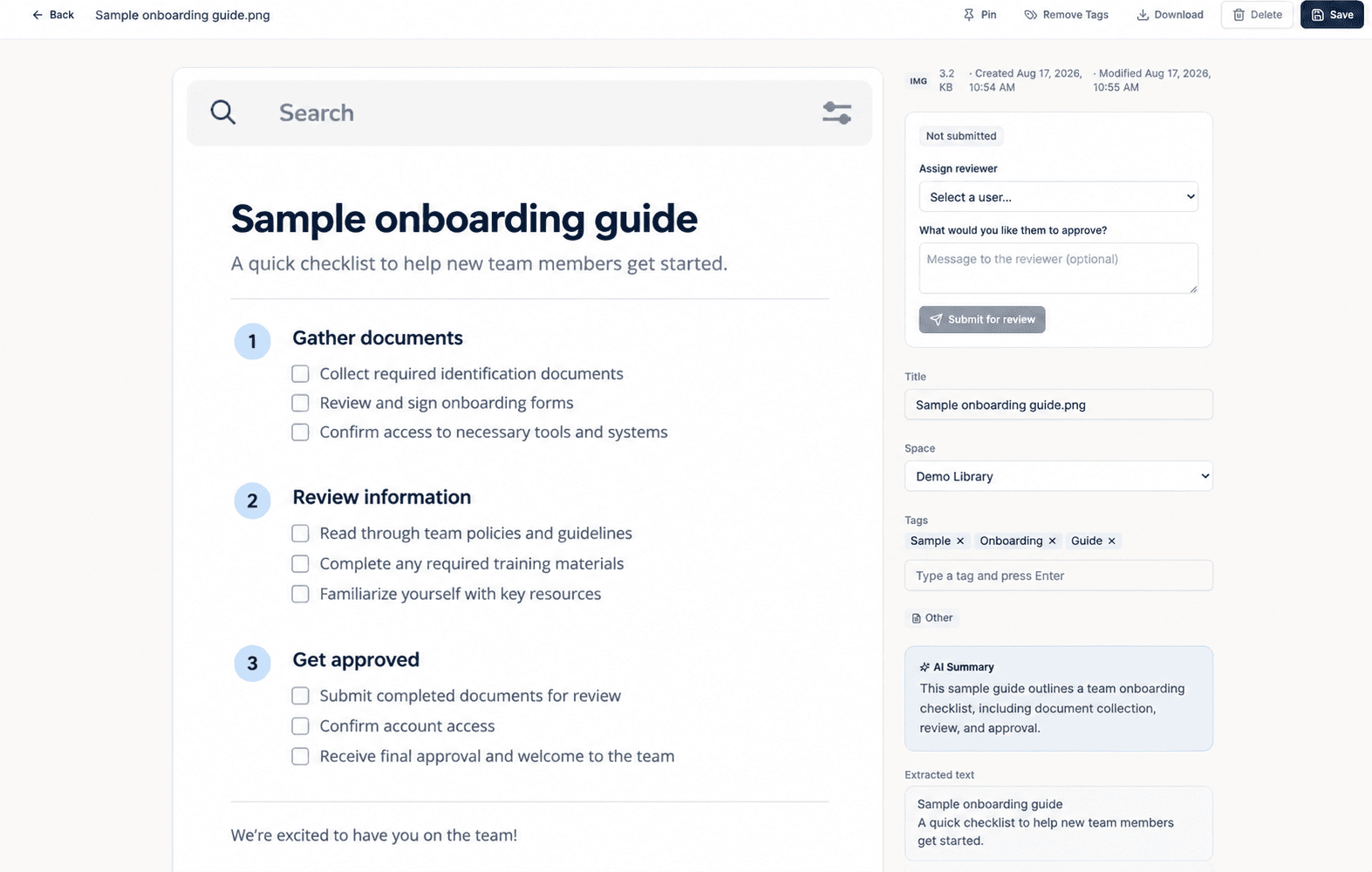
Before you expand
Know the limits.
- This guide describes searching extracted text inside Narra. It does not promise that downloading the original scan adds a searchable text layer to that PDF.
- OCR quality varies with the source. Handwriting, tables, low contrast, and complex layouts need careful review.
- Processing uses your plan’s smart-processing allowance. Starter includes 2,500 pages per company per month; check pricing for other plans and additional usage.
Before you start
Practical questions.
Does every uploaded PDF become searchable automatically?
No. The intake path and extraction settings matter. Upload with OCR uses standard extraction; Upload to Space follows Smart Extract, and Library folders skip OCR.
What about documents already in a Space?
Enabling Smart Extract applies to future files. For eligible existing files, use Run Smart Extract under Files already here in the location’s metadata settings. Processing runs in batches; check progress in Uploads.
Is OCR the same as an AI summary?
No. OCR extracts text from the page image. An AI-assisted summary condenses information and may omit or misstate details. Verify important information against the original.
What if a search does not find the document?
Check the destination’s extraction settings, processing status, extracted text, and your access. Try another distinctive phrase or known metadata. A successful upload alone does not establish that OCR has finished.
Try it with your own process
Bring one task into focus.
Start a 7-day trial from $95 per seat per month. Self-serve setup is $0.
Card required before workspace access. Cancel before the trial ends to avoid the first subscription charge.
Compare plans and included features →Another task on your list?